Showing posts with label PowerShell ISE. Show all posts

Saturday, January 30, 2016

Introducing the PowerShell ISE Preview

Now this is pretty cool: http://blogs.msdn.com/b/powershell/archive/2016/01/20/introducing-the-windows-powershell-ise-preview.aspx. The PowerShell team are releasing what is effectively a beta version of the PowerShell ISE as a separate stand alone tool.

As I told my PowerShell class last week in Luxembourg, the ISE is probably the best default tool out there. It’s free, and built in. I do like some features of other ISEs, but paying for them, or having to load that ISE on mujltiple systems (vs just using the ISE) – it all makes the ISE for me the tool I use. Of course, the ISE addin model has enabled fantastic tools such as ISESteroids (which I use on my laptop and main workstation).

So having loaded it – I can’t see any difference. According to the blog post:

“this is intentional!  This first release is meant to ensure that the new preview release model will work and that there are no major issues.  After the initial release, we hope to ship a new release roughly once per month with new feature improvements and bug fixes.  It will also be a lot easier to ship minor releases to address bugs that may appear due to new features.”

Wow – monthly updates! I am so liking this new MIcrosoft that no longer has to wait three years just to fix typos in help text! Smile. This responsiveness is very attractice.

One small thing – if you are going to play with the new add-in model and want keep your real ISE and preview ISE profiles separate – you may need to use the variable $PsIse.IsPreviewRelease.  Naturally, this will be true when you are using the Preview version!”"

Tuesday, July 01, 2014

PowerShell ISE Keyboard Shortcuts

I hit a recent issue using the ISE and trying to use the updated version of James Brundage’s ISEPackv2 module – a keyboard shortcut used in James’s module has been taken by a later version of PowerShell. Not the end of the world and easily remedied (heck, I have the code!). I was playing around with keyboard shortcuts and wrote a little function that, when run inside the ISE, gets the keyboard shortcuts that are set.
I’ve published the Get-ISEShortcut over on my PowerShell scripts blog, but the core of function is these lines of code:
$gps = $psISE.GetType().Assembly
$rm = New-Object System.Resources.ResourceManager GuiStrings,$gps
$rm.GetResourceSet((Get-Culture),$True,$True) |
    Where Value -CMatch "(F\d)|(Shift\+)|(Alt\+)|(Ctrl\+)"
This code gets the GUI related resource strings held by the ISE and then weeds out all but he keyboard shortcuts. In the published script, I sort them to get a more effective list. On my system, I get the following:
PSH [C:\foo]: Get-ISEShortcut | ft -AutoSize value, name
Value               Name                                          
-----               ----                                          
Alt+Backspace       EditorUndoShortcut2                           
Alt+Down            EditorSelectNextSiblingShortcut               
Alt+F4              ExitShortcut                                  
Alt+Left            EditorSelectEnclosingShortcut                 
Alt+Right           EditorSelectFirstChildShortcut                
Alt+Shift+Backspace EditorRedoShortcut2                           
Alt+Shift+Down      EditorBoxSelectLineDownShortcut               
Alt+Shift+H         ToggleHorizontalAddOnPaneShortcut             
Alt+Shift+Left      EditorBoxSelectToPreviousCharacterShortcut    
Alt+Shift+Right     EditorBoxSelectToNextCharacterShortcut        
Alt+Shift+T         EditorTransposeLineShortcut                   
Alt+Shift+Up        EditorBoxSelectLineUpShortcut                 
Alt+Shift+V         ToggleVerticalAddOnPaneShortcut               
Alt+Up              EditorSelectPreviousSiblingShortcut           
Ctrl+1              ShowScriptPaneTopShortcut                     
Ctrl+2              ShowScriptPaneRightShortcut                   
Ctrl+3              ShowScriptPaneMaximizedShortcut               
Ctrl+A              EditorSelectAllShortcut                       
Ctrl+Add            ZoomIn1Shortcut                               
Ctrl+Alt+End        EditorMoveCurrentLineToBottomShortcut         
Ctrl+Alt+Home       EditorMoveCurrentLineToTopShortcut            
Ctrl+B              BreakAllDebuggerShortcut                      
Ctrl+Backspace      EditorDeleteWordToLeftShortcut                
Ctrl+Break          StopExecutionShortcut                         
Ctrl+C              StopAndCopyShortcut                           
Ctrl+D              GoToConsoleShortcut                           
Ctrl+Del            EditorDeleteWordToRightShortcut               
Ctrl+Down           EditorScrollDownAndMoveCaretIfNecessaryShortcut
Ctrl+End            EditorMoveToEndOfDocumentShortcut             
Ctrl+F              FindShortcut                                  
Ctrl+F1             ShowCommandShortcut                           
Ctrl+F4             CloseScriptShortcut                           
Ctrl+G              GoToLineShortcut                              
Ctrl+H              ReplaceShortcut                               
Ctrl+Home           EditorMoveToStartOfDocumentShortcut           
Ctrl+I              GoToEditorShortcut                            
Ctrl+Ins            Copy2Shortcut                                 
Ctrl+J              ShowSnippetShortcut                           
Ctrl+Left           EditorMoveToPreviousWordShortcut              
Ctrl+M              ToggleOutliningExpansionShortcut              
Ctrl+Minus          ZoomOut3Shortcut                              
Ctrl+N              NewScriptShortcut                             
Ctrl+O              OpenScriptShortcut                            
Ctrl+Oem6           GoToMatchShortcut                             
Ctrl+Plus           ZoomIn3Shortcut                               
Ctrl+R              ToggleScriptPaneShortcut                      
Ctrl+Right          EditorMoveToNextWordShortcut                  
Ctrl+S              SaveScriptShortcut                            
Ctrl+Shift+Add      ZoomIn2Shortcut                               
Ctrl+Shift+D        GetCallStackShortcut                          
Ctrl+Shift+End      EditorSelectToEndOfDocumentShortcut           
Ctrl+Shift+F9       RemoveAllBreakpointsShortcut                  
Ctrl+Shift+H        HideHorizontalAddOnToolShortcut               
Ctrl+Shift+Home     EditorSelectToStartOfDocumentShortcut         
Ctrl+Shift+L        ListBreakpointsShortcut                       
Ctrl+Shift+Left     EditorSelectToPreviousWordShortcut            
Ctrl+Shift+Minus    ZoomOut4Shortcut                              
Ctrl+Shift+P        StartPowerShellShortcut                       
Ctrl+Shift+Plus     ZoomIn4Shortcut                               
Ctrl+Shift+R        NewRemotePowerShellTabShortcut                
Ctrl+Shift+Right    EditorSelectToNextWordShortcut                
Ctrl+Shift+Subtract ZoomOut2Shortcut                              
Ctrl+Shift+U        EditorMakeUppercaseShortcut                   
Ctrl+Shift+V        HideVerticalAddOnToolShortcut                 
Ctrl+Space          IntellisenseShortcut                          
Ctrl+Subtract       ZoomOut1Shortcut                              
Ctrl+T              NewRunspaceShortcut                           
Ctrl+U              EditorMakeLowercaseShortcut                   
Ctrl+Up             EditorScrollUpAndMoveCaretIfNecessaryShortcut 
Ctrl+V              Paste1Shortcut                                
Ctrl+W              CloseRunspaceShortcut                         
Ctrl+X              Cut1Shortcut                                  
Ctrl+Y              EditorRedoShortcut1                           
Ctrl+Z              EditorUndoShortcut1                           
F1                  F1KeyboardDisplayName                         
F1                  HelpShortcut                                  
F10                 StepOverShortcut                              
F10                 F10KeyboardDisplayName                        
F11                 StepIntoShortcut                              
F11                 F11KeyboardDisplayName                        
F12                 F12KeyboardDisplayName                        
F2                  F2KeyboardDisplayName                         
F3                  F3KeyboardDisplayName                         
F3                  FindNextShortcut                              
F4                  F4KeyboardDisplayName                         
F5                  F5KeyboardDisplayName                         
F5                  RunScriptShortcut                             
F6                  F6KeyboardDisplayName                         
F7                  F7KeyboardDisplayName                         
F8                  F8KeyboardDisplayName                         
F8                  RunSelectionShortcut                          
F9                  F9KeyboardDisplayName                         
F9                  ToggleBreakpointShortcut                      
Shift+Backspace     EditorDeleteCharacterToLeftShortcut           
Shift+Del           Cut2Shortcut                                  
Shift+Down          EditorSelectLineDownShortcut                  
Shift+End           EditorSelectToEndOfLineShortcut               
Shift+Enter         EditorInsertNewLineShortcut                   
Shift+F11           StepOutShortcut                               
Shift+F3            FindPreviousShortcut                          
Shift+F5            StopDebuggerShortcut                          
Shift+Home          EditorSelectToStartOfLineShortcut             
Shift+Ins           Paste2Shortcut                                
Shift+Left          EditorSelectToPreviousCharacterShortcut       
Shift+PgDn          EditorSelectPageDownShortcut                  
Shift+PgUp          EditorSelectPageUpShortcut                    
Shift+Right         EditorSelectToNextCharacterShortcut           
Shift+Up            EditorSelectLineUpShortcut 

Monday, January 21, 2013

Viewing PowerShell Function Definitions in the ISE–Part 2

Last Friday, I published an article about a neat script I’d come across. At the end, I mentioned it would be nice to extend this to enable me to highlight a function name I’m calling in code and either use a menu item or short-cut keys to get the definition up.

Well, I spend several hours today playing and have done just that. Yesterday, I polished up the code a bit and published it over on my PowerShell Scripts blog. At home, I’ve incorporated it into my personal ISE module and it now loads every time I start up the ISE.

The script, as extended, defines a function (Open-FunctionInISE), then adds it to an ISE menu. The function takes input in three ways: you can specify the function name to open, you can highlight the function name in an open edit window and use either short-cut keys or the ISE menu. And if those fail, the function prompts for a function name. I’ve also taken the liberty of renaming the function to be, hopefully, closer to best practice naming!

In converting the function, it was interesting working with a single function that could take input from the pipeline, from the command line of via selected ISE text (and which prompts for a function name if all those fail). In doing the conversion, changed the parameter from a string array to string, which felt nearer to the way I see the script being used. I might play around a bit with the script and add that back in. To simplify such changes, I’ve left the function to operate in the Process block, but I have pulled out the enumeration of objects within each process block.

Another thing the extended script did was to add the function to a menu item in the ISE. That turns out to be easy. Before the script adds the function to the add-on menu, it checks to see if it’s already been added (as might happen if you decide to edit the function and start running it!). Of course, if you already have the menu item created, to make changes in the function itself, just comment out the menu addition code. Or use the function to bring the function definition into the ISE, make your changes and re-run just that script (remembering to persist any changes you decide to make!).

Thanks to the original author of this script (Cookie.Monster) for giving me something fun to do on a Sunday afternoon. Comments most welcome.

Technorati Tags:

Friday, January 18, 2013

Viewing PowerShell Function Definitions in the ISE

I came across a neat script, recently posted to Microsoft's Script Center. The function, Open-ISEFunction.ps1 takes the name(s) of function(s) that are currently defined and creates an ISE edit tab for each function.  It’s pretty simple in that it jut grabs the function definition from the function: drive, wraps the definition in a function/script block, then opens and adds the definition in a new ISE window.

If I get time, I might extend this function for the ISE into a menu item. The expanded function, which could as a menu item have a command key short-cut, could take any selected text and try to open the module of the same name. I’d also like to add a couple of comments at the start that might help.


Technorati Tags:

Saturday, November 12, 2011

Using the PowerShell ISE–two cool finds

I’ve been using PowerShell’s Integrated Scripting Environment ever since it was in beta. Despite being relatively slow to load, it sure beats using Notepad for simple script development/debugging. The colour coding alone makes it even more useful! I love how you can add functionality to the editor via object model. It’s neat how that object model is exposed inside PowerShell as the $ISE variable – and how easy it is to use it to add menu items (and keyboard short cuts for the menu items).

A freely available module that offers a lot of ISE customisation is the IsePack, which is part of the PowerShellPack mega-module issued by Microsoft as part of the Windows 7 Resource Kit. You can download the full PowerShellPack from http://archive.msdn.microsoft.com/PowerShellPack. The PowerShellPack module is actually a set of 10 sub-modules. You can import the entire module (Import-Module PowerShellPack) or the sub-components. In my ISE Profile file, I add the ISE pack in specifically (Import-Module IsePack). That in turn exposes me an additional Add-On menu item, ISEPACK. This menu contains a set of sub-menus which add a lot of features to the ISE.

My two cool finds are partly what’s in IsePack and what I could easily add to it. The ISEPack creates a number of functions based on the ISE’s object model. It then leverages those in additional functions that PowerShell associates with menu items and keyboard shortcuts when the module is imported. And since the module is just a text file – you can easily edit it and add more features.

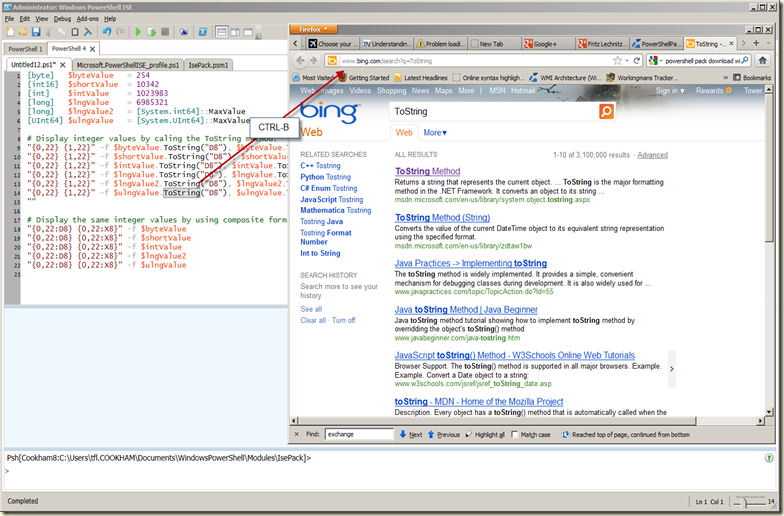
The first cool find is the Search-Bing function, which is associated with a menu item (Add-ons/IsePack/Search-Bing) and a keyboard shortcut (Ctrl-B). The Search-Bing function uses a lower level function,  Select-CurrentText, that gets the text that is currently selected somewhere on the ISE', then pipes it to copy of IE which points http://www.bing.com/search?q=$_. Thus, if I have the text ‘ToString’ highlighed in an open editor window, and hit Ctrl, I get a Bing Search Page, like this:
image


The second cool thing was how easy it was to ammend the IsePack module to add a Search-Google function. In the IsePack.PSM1 file, there’s a fragment of code that implements the Search-Bing feature (and adds it to the menu) This fragement is part of a larger script, but here’s the starting poing:

"Search-Bing" = {
        $Shell = New-Object -ComObject Shell.Application
        Select-CurrentText | Where-Object { $_ } | ForEach-Object {
            $shell.ShellExecute("
http://www.bing.com/search?q=$_")
        }
    } | Add-Member NoteProperty ShortcutKey "CTRL+B" –PassThru


As you can see, Search-Bing is associated with a script block that first opens the currently configured Web Browser (FireFox in my case). Then it executes a Bing Search on the currently selected text. This results in the search window coming up. So how hard was it to add to add a Search-Google? Trivial as it turns out. I just added the following text directly below the Search-Bing definition:

    "Search-Google" = {
        $Shell = New-Object -ComObject Shell.Application
        Select-CurrentText | Where-Object { $_ } | ForEach-Object {
            $shell.ShellExecute("http://www.Google.com/search?q=$_")
        }
    } | Add-Member NoteProperty ShortcutKey "CTRL+Shift+G" -PassThru


Sadly, Ctrl+G was already taken by something (a puzzle for another day!), so I used Ctrl+Shift+G and that brings up something like this:

image


As I am currently working on my next Pluralsight course on Formatting with PowerShell, I’m finding a need to look stuff up in MSDN and these two functions sure are useful to me!

Saturday, December 19, 2009

PowerShell’s Popularity and Search Engines

I was searching for some information on how to add custom menus to PowerShell ISE. I’d been meaning to play around with this for a while and had some time last night. So I went searching and came across what looked at first sight to be the perfect answer: a blog post by Jeffrey Snover entitled My PowerShell_ISE Profile. It did just want I wanted – so I added to my ISE profile and restarted ISE. WHOOPS – there were some really weird errors.

To make a long story short, PowerShell changed post CTP3 – in this case the $psISE.CustomMenu.Submenus.Add calls at the bottom of Jeffrey’s post no longer work. After tweeing my confusion, I got pointed to: http://powershellers.blogspot.com/2009/05/what-happened-to-custommenu-property.html which resolved the issue for me. Sadly, that page had not come up at all in the searching I’d done. While it’s not the point of this post, here’s the erroneous and corrected lines of Jeffrey’s script:

At the end of his script, the lines:

$null = $psISE.CustomMenu.Submenus.Add("Edit Selected", {Edit-Selected}, 'Ctrl+E')
$null = $psISE.CustomMenu.Submenus.Add("Export Session Files", {Export-SessionFiles}, 'Ctrl+SHIFT+E')
$null = $psISE.CustomMenu.Submenus.Add("Import Session Files", {Import-SessionFiles}, 'Ctrl+SHIFT+I')

Should read:

$null = $psISE.CurrentPowerShellTab.AddOnsMenu.submenus.Add("Edit Selected",{edit-selected}, 'Ctrl+E')
$null = $psISE.CurrentPowerShellTab.AddOnsMenu.submenus.Add("Export Session Files", {Export-SessionFiles}, 'Ctrl+Alt+E')
$null = $psISE.CurrentPowerShellTab.AddOnsMenu.submenus.Add("Import Session Files", {Import-SessionFiles}, 'Ctrl+Alt+I')

But that’s not the real problem – and I sure do not want to criticise the PowerShell Team! The problem is wider than this one post.The problem is that there’s been so much blog and web traffic around PowerShell that the Search Engines are promoting old content. For example: try searching for “PowerShell V2 dowload” – On Google the first three hits return links to Pre-RTM downloads. Bing is no better at present!

I think the solution is twofold. To some degree, the issue will tend to go away – as new content is created, indexed, referenced and used, the search engines will ‘learn’ the new content and ‘forget’ the older stuff. So let’s get going and start pointing to the updated key content! At the same time, it’ll be useful for bloggers to update their older content – either dropping it totally, or updating the content somehow. I’ll do what I can on that front!

In some respects, it’s a nice problem and one almost worth having! The search engines are just a reflection of the creators and consumers of content – if PowerShell wasn’t so popular, the links would be even worse!

Technorati Tags: ,